From recording to a record you can sign.
Scriven turns confidential audio into a speaker-attributed transcript you correct, certify and translate. This guide covers every step, the 82 languages it understands, and where your audio is processed at each one.

In the browser
Sign up and choose US, EU, Singapore or Japan. Upload or record, and processing runs in that region. The Free plan includes 60 cloud minutes, no card needed.
Desktop app
Windows and Linux. Opens straight into a 30-minute trial with no account. Transcription, speakers and translation run offline, so audio never leaves the computer.
Android
Record a meeting or a hearing on the phone, then review on any screen. The phone sends audio to your chosen region; it does not process on the device. Get it on Google Play.
Your first transcript
Four steps. The same in the browser, on the desktop and on the phone.
- Add audioDrop a file (MP3, M4A, WAV, OGG, Opus, MP4 and most video) or press Record. Long files are fine: a three-hour deposition is one job.
- Choose language, speakers and where it runsPick the spoken language or leave Auto-detect. Set the number of speakers if you know it. The setup screen always shows where this file will be processed: on this machine, or in your cloud region.
- Wait for the draftScriven shows a real estimate based on your hardware or the cloud queue, and the phase it is in: transcribing, then identifying speakers. Cloud jobs keep running if you close the window.
- Review, correct and certifyThe draft opens in the editor. Fix words, check speakers, mark lines reviewed, then certify the version you stand behind.
Calls and voice notes
Scriven records your microphone, what your computer plays, or both together. Both together is how you record an online call. A recording becomes a file like any other, with the same speakers, editor and documents.
| App | Microphone | Call audio | Call + microphone |
|---|---|---|---|
| Browser (Chrome, Edge) | Yes | Yes | Yes |
| Desktop app, Windows | Yes | Yes | Yes |
| Desktop app, Linux | Not yet. Record with another app and drop the file in. | ||
| Android | Yes | Android does not let apps record calls. Use it for voice notes and meetings in the room. | |
Record an online call
- Open Record and choose Screen + system audio + microphoneThat captures the other side of the call and your own voice, mixed into one recording.
- Pick the call in your browser’s share windowChoose the call’s window or tab and keep Share audio switched on. On Windows you can share the whole screen with its sound.
- Keep working while it recordsA bar stays at the bottom of Scriven with the time and a level meter. Pause and resume as often as you need.
- Stop, then set the number of peopleTranscription starts from the setup screen. Tell it how many people spoke for the most reliable split, and pick templates to draft afterward.
Tell everyone on the call that you are recording before you start. In many places the law requires the consent of every participant.
Already have the call recording?
Drop the file into Files. Zoom, Teams and phone systems often save each side of a call on its own stereo channel; Scriven detects that and assigns speakers by channel, which is exact rather than estimated.
Voice notes on your phone
- Tap RecordGive it a name if you like, and choose the language or leave Auto-detect.
- Set speakers to one for dictationSingle-speaker mode skips speaker separation, so a note reads as one clean block.
- Choose what to draft afterwardPick a template, such as a file note. The draft is ready next to the transcript. Scriven remembers your last choice.
- Keep Scriven open while you recordThe recording uploads to your region when you stop. Review it on the phone or on any other screen.
Documents and templates
A template says what document you want from a recording: its sections and what belongs in each. Scriven drafts it from the transcript and nothing else. The draft opens next to the transcript, where you correct it, certify it and export it.
Make a template
- Open Templates and press NewEvery workspace starts with one neutral template, General summary (Summary, Key points, Action items). Edit it or add your own.
- Add sections and say what goes in eachA title and one line of guidance per section, plus instructions for the whole document. The order you set is the order in the document.
- Keep it Personal or share it with your TeamTeam templates appear for everyone in the workspace, so a practice uses the same memo format.
Draft a document
- Before transcribing, or any time afterAdd templates under Documents to draft afterward when you record or upload; they start as soon as the transcript is ready. Or open a transcript and press Generate document.
- Choose where it is draftedThe screen says where before anything runs.
- Review, certify, exportCorrect the draft like the transcript. Certify to lock the version you stand behind, then export it to Word.
| Where | Available in | What leaves the machine | |
|---|---|---|---|
| On this machine | Desktop app, after a one-time model download sized to the computer | Nothing | |
| Scriven cloud | Browser, Android and desktop | The transcript text, to draft the document | |
Scriven only writes what was said in the recording. A section with nothing to go on says Not discussed. instead of guessing, so a gap in the call stays a visible gap in the document.
Speakers: who said what, to the second
Speaker identification is its own pass, run after transcription. Scriven does not guess speakers from the text. It analyses the voices, then aligns every word to the person speaking at that moment.
Similar voices on one microphone are the hardest case for any system. If two people sound alike, set the speaker count and expect to reassign a few lines. The editor is built for exactly that.
The editor
The transcript is the work surface. Click any line to hear it; everything else is on the keyboard.
| Move between lines | ↑ ↓ or J K |
| Edit the line | Enter |
| Stop editing | Esc |
| Play or pause the current line | Space |
| Select a line for merging | X |
| Merge selected lines | Ctrl/⌘ M |
| Find and replace | Ctrl/⌘ F |
| Mark reviewed and go to the next line | Ctrl/⌘ Enter |
Edits save as you type. The waveform under the player is coloured by speaker, so you can see turns before you read them. On a phone the player floats at the bottom and the same tools sit under each line.
Ask
Ask questions about one recording: “When did the witness first mention the invoice?” or “List every date said.”
Ask opens beside the transcript and can expand to full screen (F). Answers come only from that transcript. Its header says where it runs: On this machine on the desktop, or in your cloud region. Answers are a starting point; check them against the lines.
Certification
A certified transcript is a specific version, signed by a specific person at a specific time, that cannot change afterwards.
- Every save is a new version. The machine draft is version 1. Nothing is overwritten, and each version is bound to its content by a SHA-256 hash.
- Certify signs the current version with your name and the time, after a confirmation. The recording then shows a Certified badge.
- Certified means locked. To change it, choose Edit anyway. That starts a new, uncertified version; the signed one stays as it was, and the list shows “Certified, then edited”.
Supported languages
82 languages, plus Auto-detect. Each one works in the cloud and offline on the desktop, and can be translated into any other.
| Language | Code | Cloud status |
|---|---|---|
| English (US) | en | Available |
| English (UK) | en-GB | Available |
| Spanish (US & Latin America) | es-US | Available |
| Spanish (Spain) | es | Available |
| French | fr | Available |
| German | de | Available |
| Italian | it | Available |
| Portuguese (Brazil) | pt-BR | Available |
| Polish | pl | Available |
| Dutch | nl | Available |
| Ukrainian | uk | Available |
| Russian | ru | Available |
| Arabic | ar | Preview |
| Chinese (Mandarin, Simplified) | zh | Available |
| Japanese | ja | Available |
No language matches. Write to support with the one you need.
Choosing a variant
Where accents and spelling differ, pick the variant you expect: English (US, UK, Australia, India), Spanish (Spain, or US and Latin America), Portuguese (Brazil or Portugal), French (France or Canada), Chinese (Mandarin Simplified or Traditional, or Cantonese).
Auto-detect
Auto-detect picks the main language of the recording. For a file that switches language, or a short clip, choosing the language gives better accuracy.
Offline accuracy
On the desktop, accuracy depends on the model size your computer can run. The setup screen shows which sizes fit your hardware and a realistic speed for each. Larger models are more accurate, most of all outside the main 15, so use the largest size your machine allows.
Translation
A translation workspace for transcripts and documents. The machine drafts each segment; a person confirms it.
Language pairs. Any of the 82 languages into any other, in both directions, on the desktop and in the cloud.
How a translation runs
- Open a recording or import a document and choose Translate. Add one or more target languages.
- Review the draft segment by segment. Source on the left, target on the right, with matches from your memory and glossary shown inline.
- Confirm each segment (Ctrl/⌘ Enter confirms and moves on). An optional proofreading pass lets a second person approve.
- Export in the original format. Bold, headings and layout survive the round-trip for DOCX and ODT.
Translation memory and glossary
Every confirmed segment is saved and offered again as an exact or close match, across all projects in your team. The glossary keeps names, defined terms and statutes consistent; glossary terms found in a segment are shown beside it with the approved translation.
Desktop translation
Runs offline after a one-time model download. Text never leaves the computer, and it is never metered on Local and Pro.
Cloud translation
Runs in your chosen region and counts against your monthly characters: 20,000 on Free, 500,000 per seat on Pro, pooled across the team.
Subtitles for video and film
Subtitles are a mode of a recording: the same words, speakers and timing as the transcript, cut into timed cues that follow your house rules. Create them from any video, review them, translate them with the same timing, and export SRT or WebVTT for every language.
 00:14:31,200
Illustrative frame
| # | Subtitle | Check |
|---|
Creating subtitles
- Add a videoMP4, MOV, MKV, WebM and most other video files. Only the audio is processed, so large files upload and run quickly.
- Choose SubtitlesFor video files Scriven asks What do you need? Pick Subtitles, then the spoken language, the number of speakers and a rule preset. You can add target languages here or later.
- Wait for the draftScriven transcribes, identifies speakers and cuts the text into cues that follow your rules: breaks at sentence ends and pauses, speaker dashes where two people share a cue, and in and out times on the spoken words.
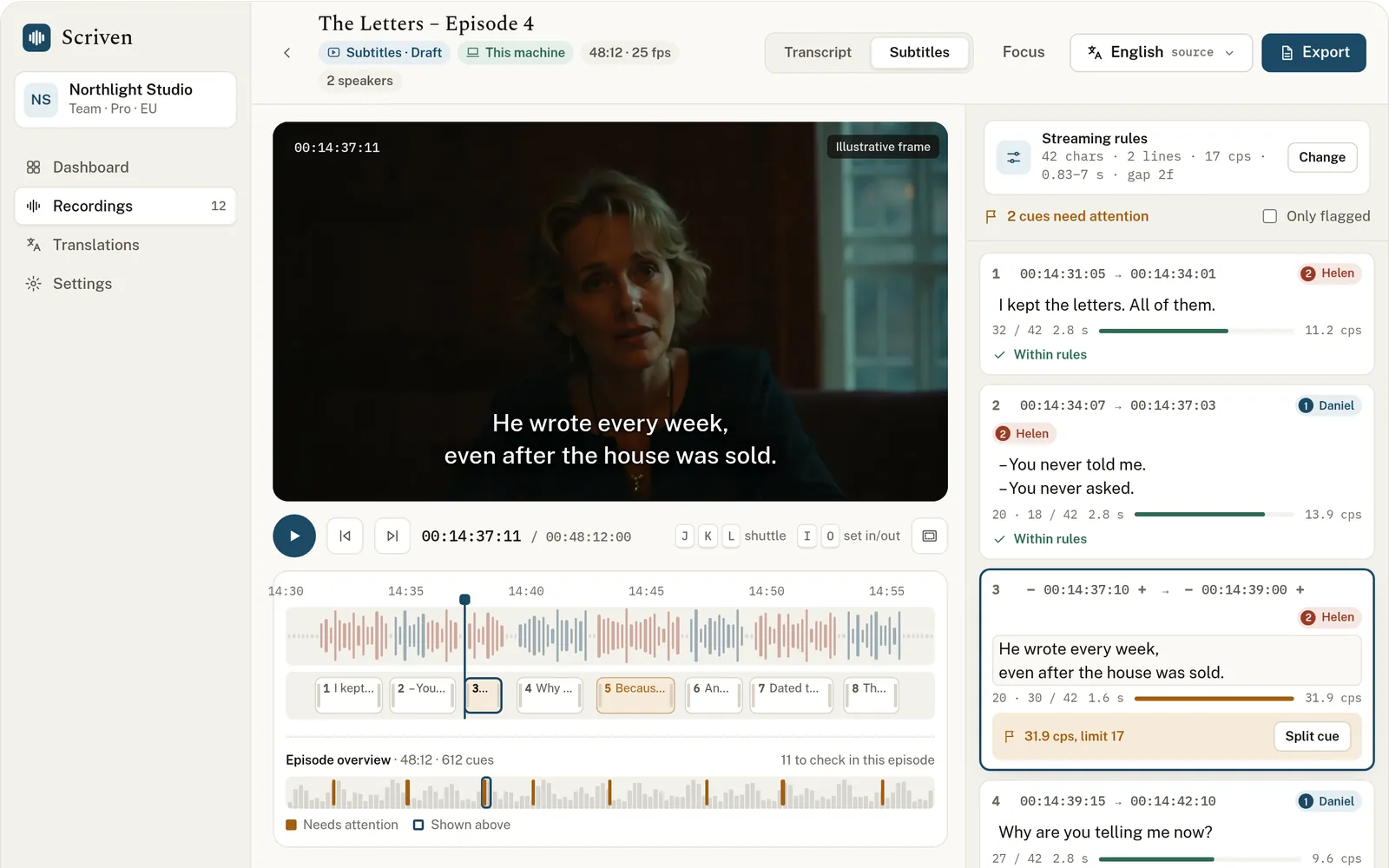
- Review and fix the flagged cuesEvery cue is checked against the rules. Cues that break one are flagged with the problem and a one-click fix, such as extending the cue or splitting it.
Already transcribed the video? Open the recording and switch the header from Transcript to Subtitles. Both views share the same text, so a word fixed in one is fixed in the other.
Reviewing on desktop
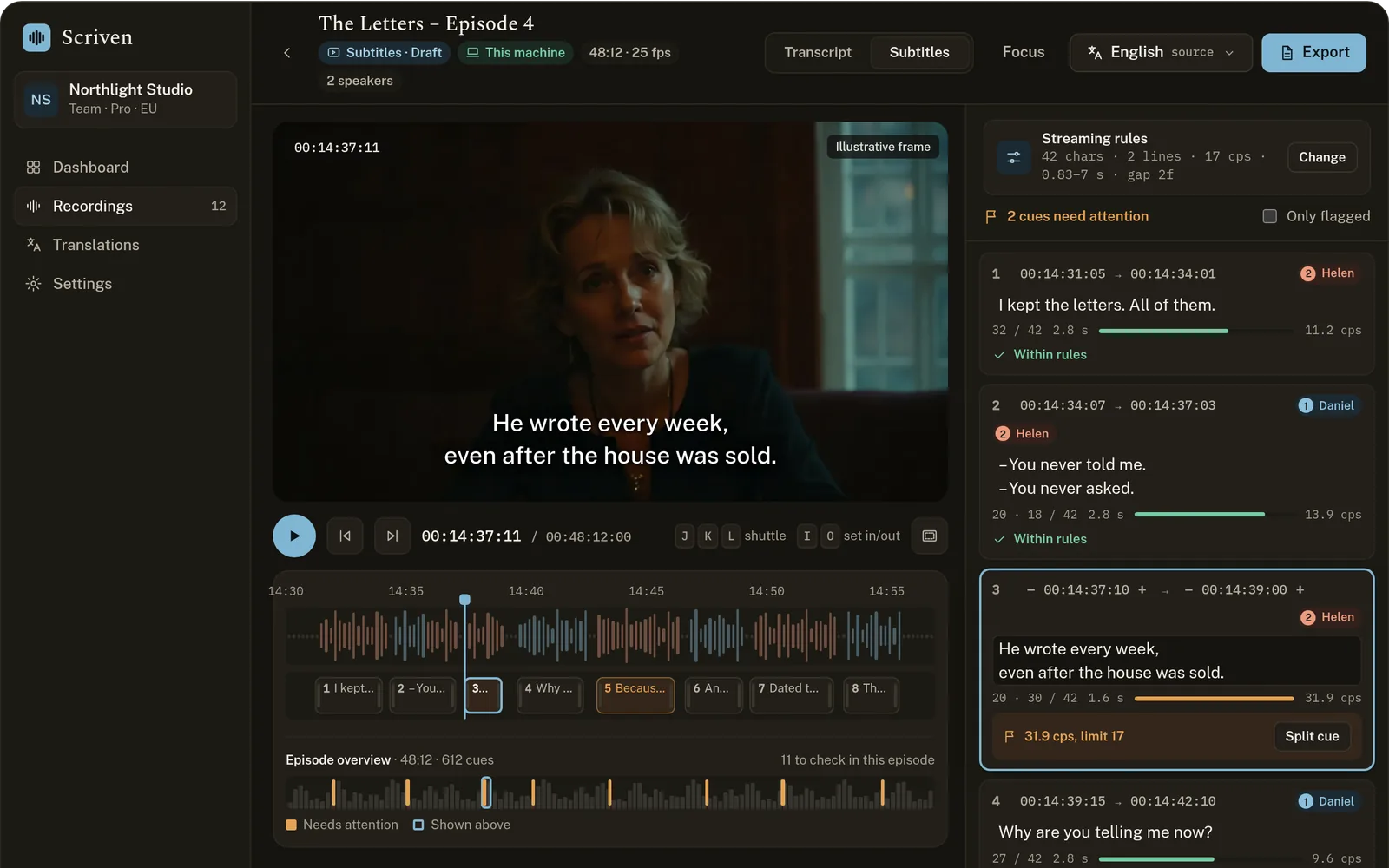
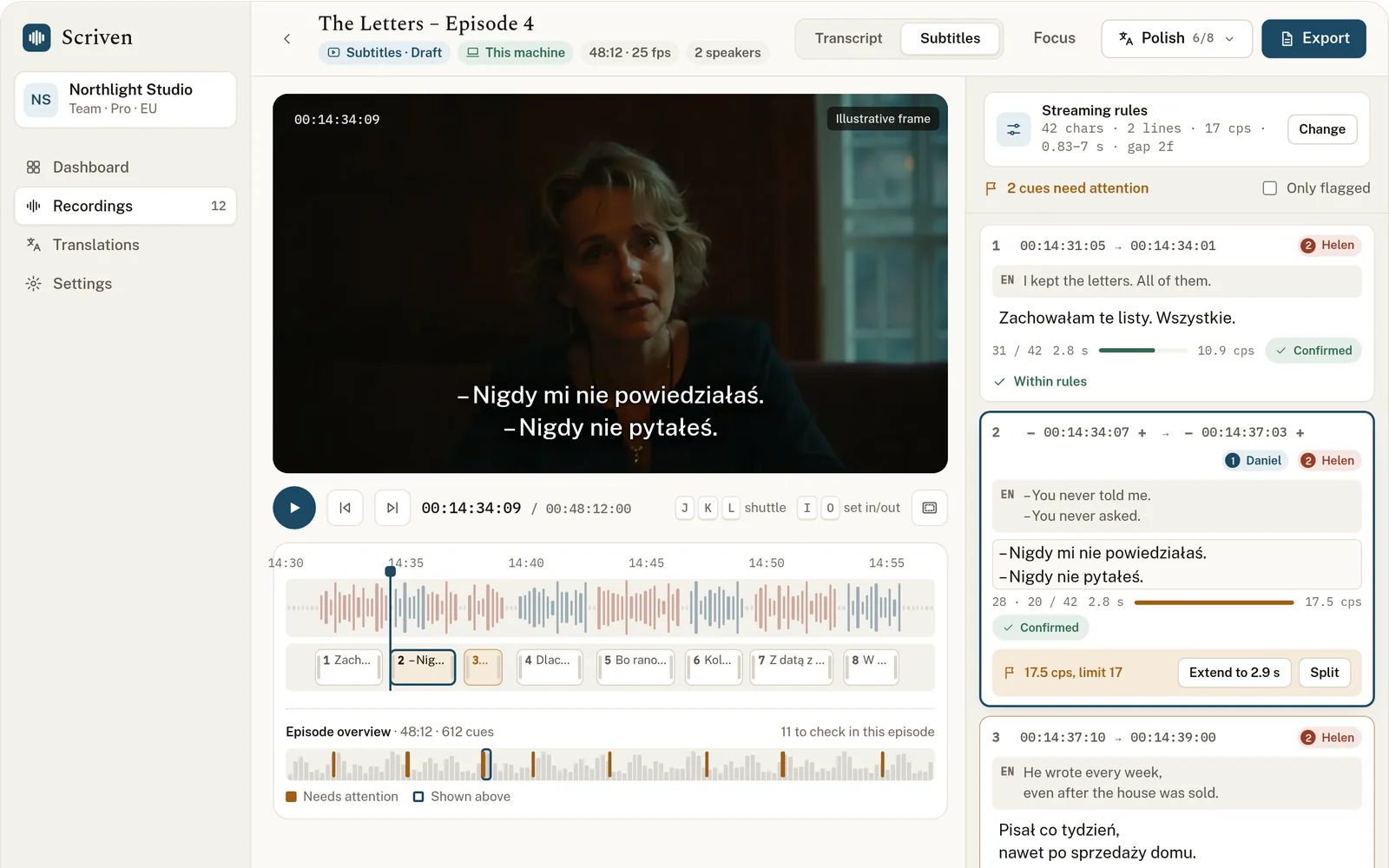
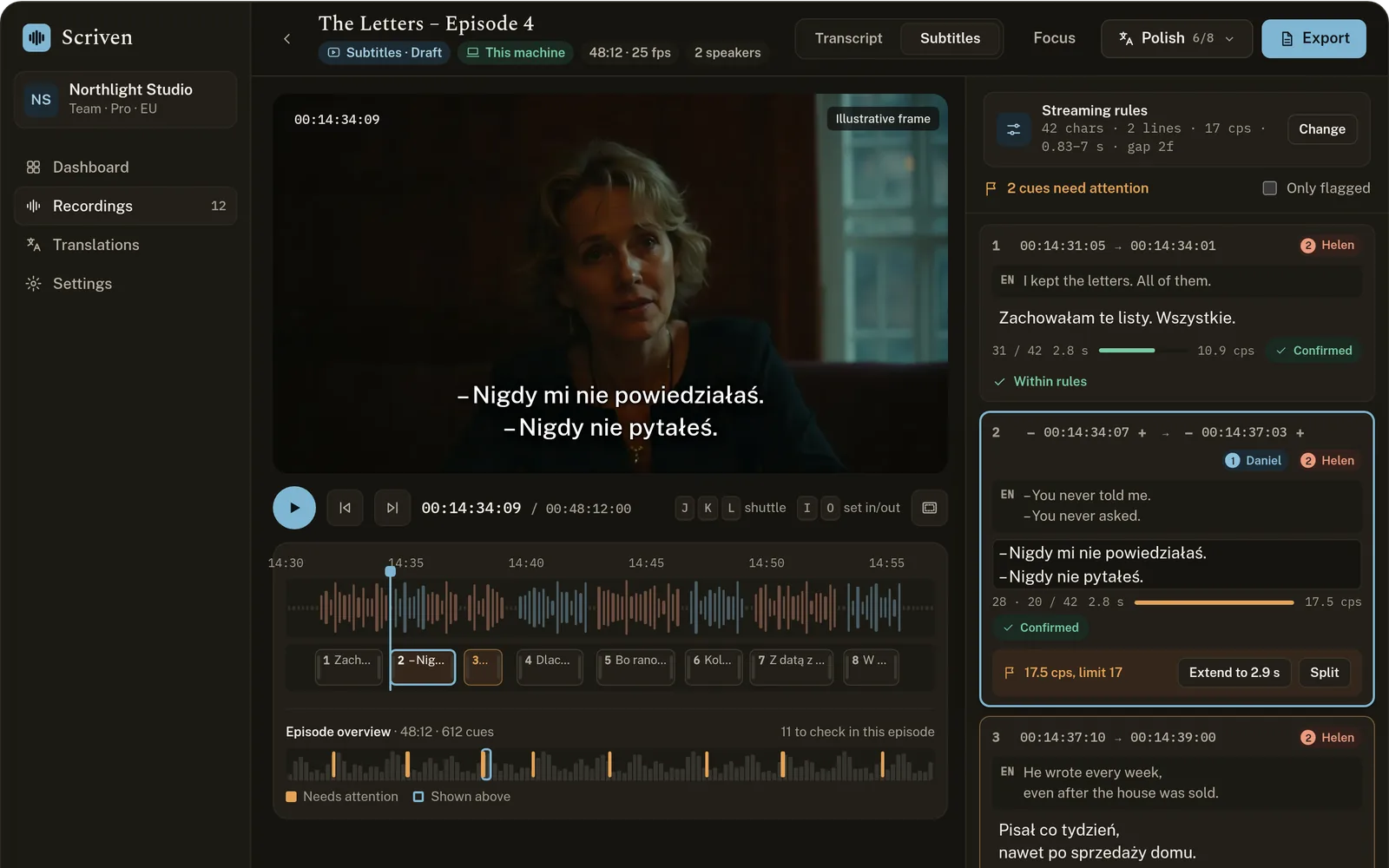
The subtitle editor shows the picture with the subtitle drawn exactly as it will export, a timeline with the speaker-coloured waveform and cue blocks, and the cue list beside them. Flagged cues are amber in both the timeline and the list, and the episode overview shows where the remaining problems are.
| Play, pause and play faster (J steps back) | J K L |
| Set the cue’s in and out at the playhead | I O |
| Move between cues | ↑ ↓ |
| Move the cue by one frame | Alt ← → |
| Split the cue at its best break | Ctrl/⌘ B |
| Confirm and go to the next cue | Ctrl/⌘ Enter |
| Next cue that needs fixing | Ctrl/⌘ J |
Reviewing on tablet and phone
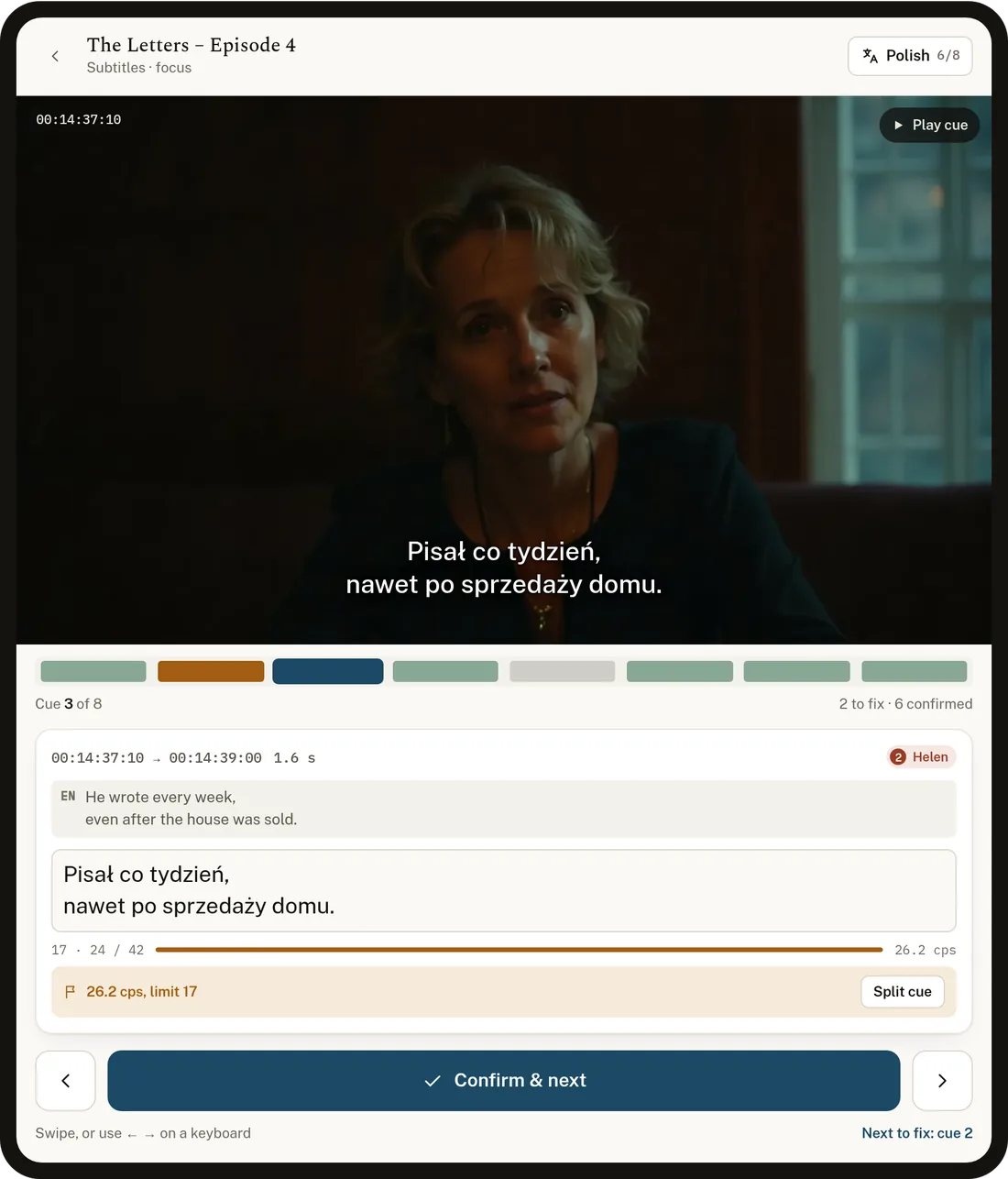
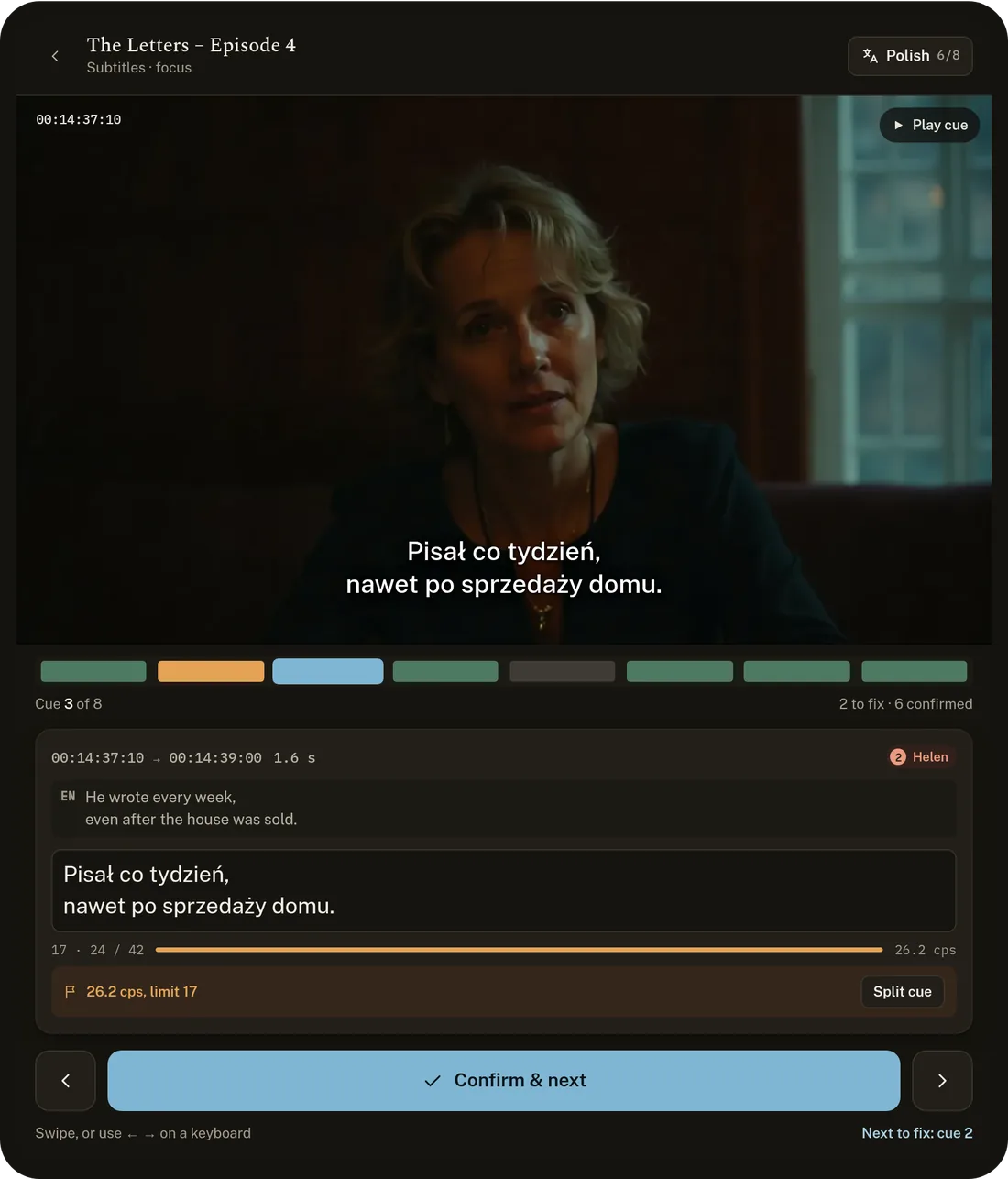
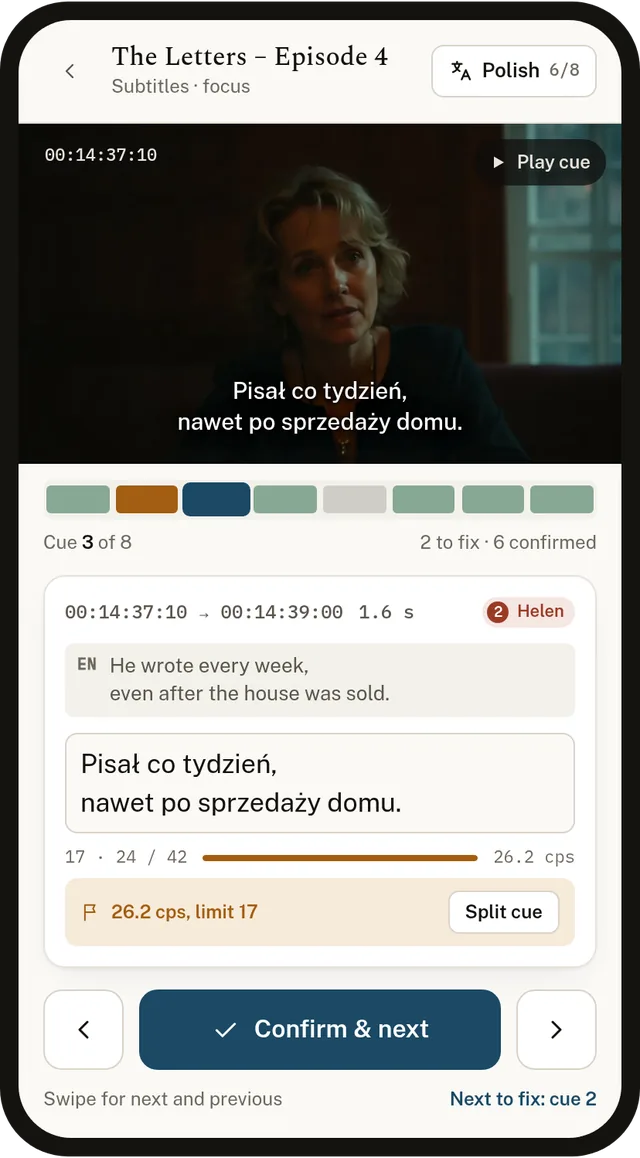
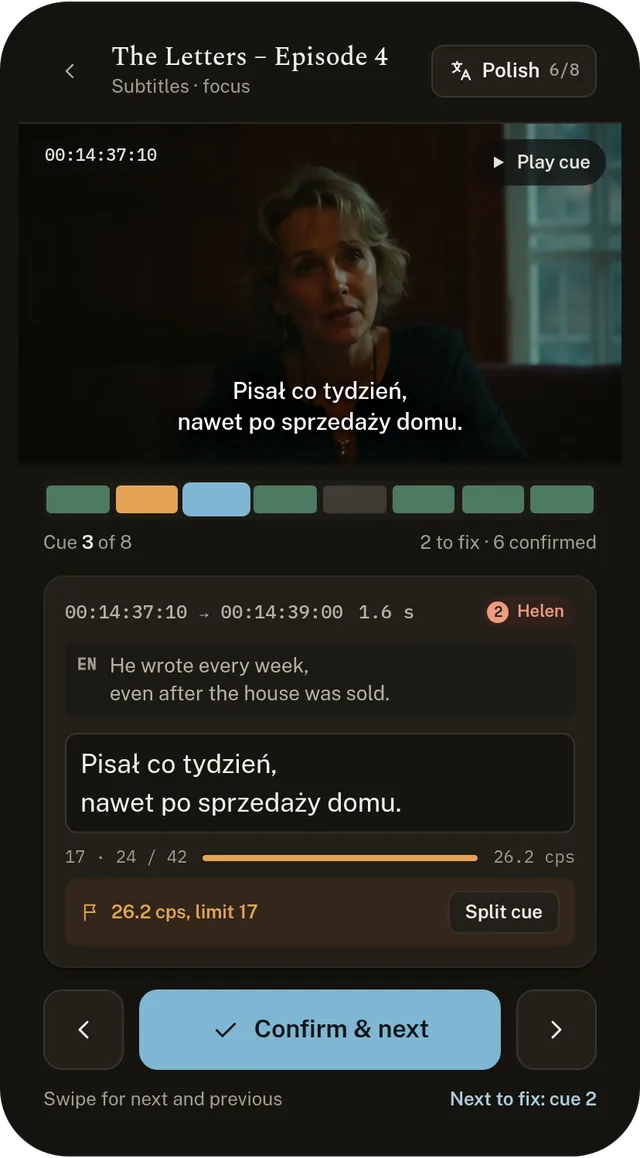
On a smaller screen Subtitles opens in focus mode: one cue at a time, with the picture and Play cue above it, the text and its checks below, and a large Confirm & next button. A strip shows every cue by state, and Next to fix jumps to the next flagged cue, so you work through the file instead of scrolling it. Swipe for the next or previous cue.
House rules
Open Rules → Change in the editor to pick a preset, set the frame and adjust any limit. Changing a limit re-checks every cue at once and saves as Custom for that project.
- Frame. 16:9, 4:3, 9:16 or 1:1. The preview and title-safe guide follow it, and Scriven suggests a line length that fits.
- Gap between cues. A minimum number of frames between one cue and the next, so subtitles never flash. Cues that are too close are flagged with a fix.
- Per-language limits. Languages such as Chinese and Japanese use shorter lines; set them once per language.
Translating subtitles
- Add a languageOpen the language menu in the editor and choose Add a language. The machine translation draft keeps every cue’s in and out times.
- Translate against the originalEach cue shows the source line above the translation, so you never switch back and forth. The rules are checked in the target language too; a translation that runs longer than the original is flagged.
- Confirm each cueConfirming marks a cue as reviewed. The language menu and the recordings list show progress per language, for example
PL 6/8. - Fix timing onceChanging a cue’s timing in one language changes it in every language, so all versions stay in sync with the picture.
Subtitle translation uses the same translation memory and glossary as documents and transcripts, and runs on this machine or in your cloud region, as shown on the recording.
Translating subtitles you already have
If the video already has subtitles, you don’t need to transcribe it. Upload the video, choose Translate my subtitles, and add your SRT or WebVTT file with its language.
- Nothing is transcribed and no cloud minutes are used. The video is kept only for playback, in your cloud region or on this computer. The Free plan includes 3 imports a month; paid plans import without limit.
- Before anything is imported you see the subtitle count, the timings and a preview. Files that are not UTF-8, common for older Polish, Czech or Baltic subtitles, are read with the right encoding, and you can change it.
- A file that starts at a broadcast timecode such as
10:00:00:00is shifted to line up with the video. - Italics and your line breaks are kept. Colours and position codes are removed, and the preview says how many.
- The file becomes version 1 in the recording’s history, marked as an imported file. Then add a language and translate as above.
Exporting
Choose Export while viewing a language. It downloads as SRT or WebVTT, with your cue timings, line breaks, italics and speaker dashes. Cues without a translation are exported in the original language, and you’re told how many.
Offline and air-gapped use
The desktop app does all of its work on the computer. Once its models are installed, it needs no network at all.
What works with no network
- Everything on this machine: transcription, speakers, the editor, certification, translation, Ask and exports.
- Not available offline: cloud processing, signing in, team sharing and the optional cloud sync for translations.
- On-device jobs never send audio or text anywhere, whether or not the computer is online.
The models
Scriven needs its models on the computer before it can work offline. On a connected computer, find On-device processing on the home screen and choose Enable. Scriven picks the model sizes that suit the computer’s memory and shows the download size first.
| Transcription, sized to the computer | 75 MB – 3.1 GB |
| Speaker identification | 35 MB |
| Translation (optional) | 3 GB |
| Ask and documents (optional), sized to the computer | 3 – 22 GB |
Installing on an air-gapped computer
- Prepare the models on a connected computerInstall Scriven and download the models you need. Use a computer with the same or less memory than the offline one, so the transcription size fits both. Once they are ready, the On-device processing card shows the models folder with a copy button.
- Copy the folder to approved mediaCopy the whole
modelsfolder, along with the Scriven installer, through your usual transfer process. - Install Scriven on the offline computerRun the installer. The app opens in its free trial with no account and no network.
- Install the models from the folderOn the On-device processing card, choose Install from folder and pick the copied
modelsfolder. Scriven copies only its own model files and confirms what is ready. - Activate with an offline licenseIn the app, open Activate and note the device ID. A team admin generates an offline license for that ID under Settings → Licensed devices and transfers the
scriven-license.txtfile. Paste its contents under Activation key. The app checks the license on the computer, with no call home.
Where the models are stored
Windows: %APPDATA%\io.usescriven.desktop\models. Linux: ~/.local/share/io.usescriven.desktop/models. IT teams can also place the folder there directly before first launch.
Updates
Install a new version of Scriven the same way, with its installer. Models and recordings stay in place. When a release ships better models, repeat the copy above; the On-device processing card says when that is needed. Need a ready-made model pack for your transfer process? Write to support.
Where your audio goes
You always know, because Scriven always shows it.
- On this machine (desktop): transcription, speakers, Ask and translation all run locally. No audio or text is sent anywhere. Works with no network.
- Cloud: audio is processed and stored in the region your team chose (US, EU, Singapore or Japan). Temporary processing files stay in that region and are deleted after the job.
- Your recordings, transcripts and translations are never used to train models.
Exports
Speaker names and timestamps carry into every format.
Word for the record, SRT subtitles for video, and plain TXT. Translations export as DOCX, ODT, XLIFF for other translation tools, or bilingual text for side-by-side review.
Plans and limits
Priced per user. Cloud minutes and characters are pooled across the team and reset monthly.
| Plan | Per user / month | Cloud minutes | Cloud translation | On this machine |
|---|---|---|---|---|
| Free | $0 | 60 | 20,000 chars | 30-minute trial |
| Local | None | None | Unlimited | |
| Pro | $49 | 600 | 500,000 chars | Unlimited |
Running low? A team owner can buy a minutes pack; it stays valid for 12 months. Enterprise adds a BAA and on-premise or dedicated cloud deployment, paid per server with unlimited users. Pro and Enterprise include a REST API for uploads and transcript retrieval, scoped to your region.
Still stuck?
Write to us with what you tried. A person answers.
On-premise server
Run Scriven on your own servers for a whole team: an API and batch queue for your systems, and the web editor for your reviewers. No internet connection is needed, ever. Available on request: our engineers prepare each deployment with you.
The server is for organisations that want transcription inside an existing workflow, such as a translation platform, a case management system or a media archive. Everything runs on your hardware: transcription, speakers, subtitles and, in the Transcription + Translation edition, translation. Your teams use it from the web editor, the desktop app and the mobile app, all pointed at your own server.
On your servers
Installed on your own hardware, fully offline if you need it. Suits air-gapped and strictly confidential environments.
Dedicated cloud deployment
We deploy and operate a private Scriven in your own cloud account and region, such as AWS, Azure, Google Cloud or Hetzner. Nothing is shared with other customers, and you keep control of the account.
No calls home, no telemetry. Media and text never leave your network.
Desktop and mobile apps
The Scriven desktop app and mobile app connect to your server just as they connect to our cloud: we configure them with your server’s address for your organisation, so nobody has to type it in. Recordings, transcripts and edits then go only to your server.
- On your internal network only. The apps reach the server on the office network or through your VPN. Nothing is reachable from the internet.
- Also from outside, if you choose. Publish the server through your firewall or reverse proxy with your own TLS certificate, and staff can record and review from anywhere. Access still requires their Scriven sign-in, and you decide who can reach it.
When a laptop can't reach the server, the desktop app keeps working on the computer itself, with its on-device engine.
Hardware
| GPU | 1 × NVIDIA, 24 GB (RTX 4090, L4 or A10 class) |
| CPU and memory | 16 cores · 64 GB RAM |
| Disk | 1 TB SSD, plus space for your media |
| Software | Linux x86-64 with Docker and the NVIDIA Container Toolkit, or Kubernetes |
| Speed on that GPU | About 3–6 min per hour of media |
Speed covers transcription and speaker identification; translation adds one to two minutes. A CPU-only server works for low volumes but is several times slower. During a pilot we measure the exact figures on your own content.
We can set it up for you
Our engineers can do the whole installation: remotely through a session you control, or on site where remote access is not allowed. That covers sizing the hardware, installing, connecting your platform to the API, setting your subtitle rules and a handover to your IT team. If you prefer to install it yourselves, the steps are below and we are on hand to help.
A standard installation
Each deployment is prepared for your environment. The usual steps:
- Receive the release bundleOne signed file per version: the application images, the model pack, checksums and a software bill of materials. You download it once from a private link and move it inside through your normal transfer process.
- Verify and load itCheck the signature, then load the images into Docker or push them to your internal registry.
- ConfigureSet the address, storage and database in one
.envfile. The defaults run everything on a single machine. - StartOne command starts the server and its GPU workers. Database updates apply automatically.
- Add the licence fileOpen Admin → Licence and upload
scriven-license.txt, or place it in the mountedlicensefolder. - Connect your platformCreate an API key under Admin → API keys and register your webhook address.
# verify the bundle and load it
scriven-bundle verify scriven-2026.11.tar.zst
docker load -i scriven-2026.11.tar.zst

# configure and start
cp scriven.env.example .env
docker compose up -d
docker compose ps
For Kubernetes, the same bundle includes a Helm chart.
Licensing
- A signed licence file, checked on your server. It names your organisation, edition, number of production servers and renewal date. Scriven verifies the signature locally; nothing is sent to us.
- Unlimited users and processing on each licensed server, whether they work in the web editor, the desktop app or the mobile app.
- Renewal is a new file. The admin screen warns 30 days before the renewal date. After it passes there is a grace period, then new jobs pause. Your transcripts stay readable and exportable at all times.
API and batch processing
The server exposes a REST API with an OpenAPI description at /api/docs. Send media, choose language, speakers and outputs, and Scriven calls your webhook when the job is done.
# submit a file
curl -H "Authorization: Bearer $SCRIVEN_API_KEY" \
     -F file=@episode-114.mp4 -F language=en-GB -F speakers=2 \
     -F outputs=vtt,srt,json \
     https://scriven.internal/api/jobs

# webhook your platform receives
{ "event": "job.completed", "jobId": "j_8f2c…", "language": "en-GB",
  "outputs": { "vtt": "/api/jobs/j_8f2c…/vtt", "json": "/api/jobs/j_8f2c…/json" } }
Subtitles
Subtitle drafts come out as SRT or WebVTT, timed to the speech and split at sentence and speaker boundaries. Set your house rules per job or as defaults: characters per line, lines per subtitle, reading speed in characters per second, and minimum and maximum duration. Reviewers can then correct the draft in the editor before it goes to translation.
Updates
Each release arrives as a new signed bundle with release notes. Back up the database, load the bundle and restart; your data and settings carry over. We support the current and previous release, and send a new model pack only when models change.
Support
We never connect to your servers. When you need help, run scriven diagnostics: it collects logs, versions and settings with secrets removed, into one file you can read before sending it to support.
Editions and pricing
Paid per server, not per user. Each licensed production server includes unlimited users across the web editor, the desktop app and the mobile app, and unlimited processing. The annual price includes standard support and the release bundles; installation by our engineers and dedicated cloud deployments are quoted separately.
Two editions: Transcription (transcription, speakers, subtitles, editor, API) and Transcription + Translation. Pilots run for 30 days, offline if needed, on your own content. Write to support@usescriven.com for a quote.